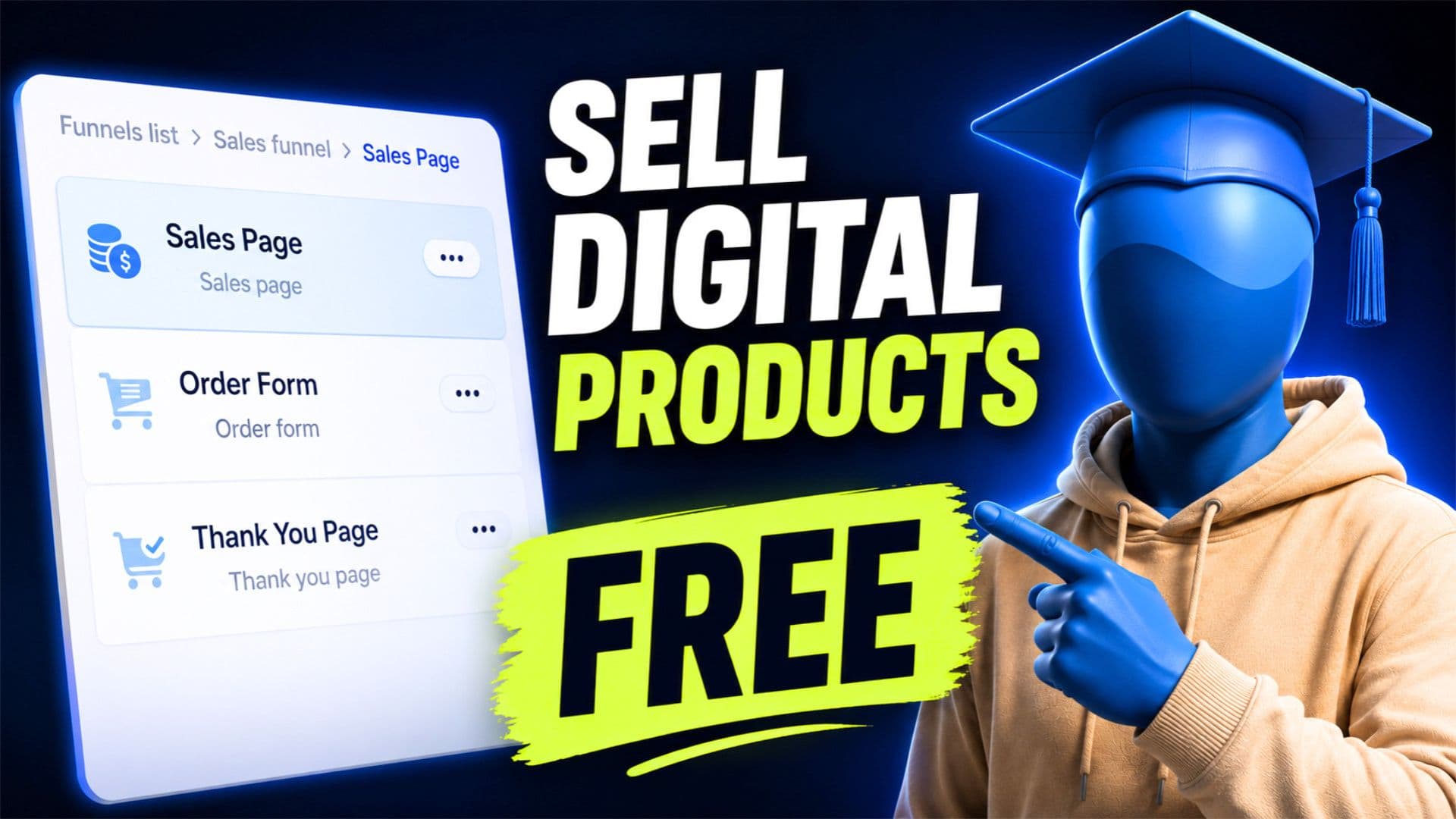
So you want to sell a digital product.
An ebook, a template, a mini course — something you actually made.
You Google where to sell it. Everyone says Gumroad, Etsy, Payhip. And sure, those work.
But then you see the fees.
Your own page. Your own checkout. You keep 100% of what you make.
No monthly fee. No percentage cut. Nothing.
That’s exactly what I’ll show you in this guide — step by step, from zero.
Systeme.io — sales pages, checkout, payments, and product delivery all in one place. The free plan is actually free. Not a trial. Just free. Create your free account here →
Table of Contents
Before we start — three things you need to sell a digital product:
One — your product. PDF, video, template, whatever.
You already have this.
Two — a page where people can actually buy it.
Three — a way to deliver it automatically after they pay.
That’s the whole thing.
We’re setting up number two and three right now.
Go create your Systeme.io account, it takes about 20 seconds, and come back.
Building your sales funnel
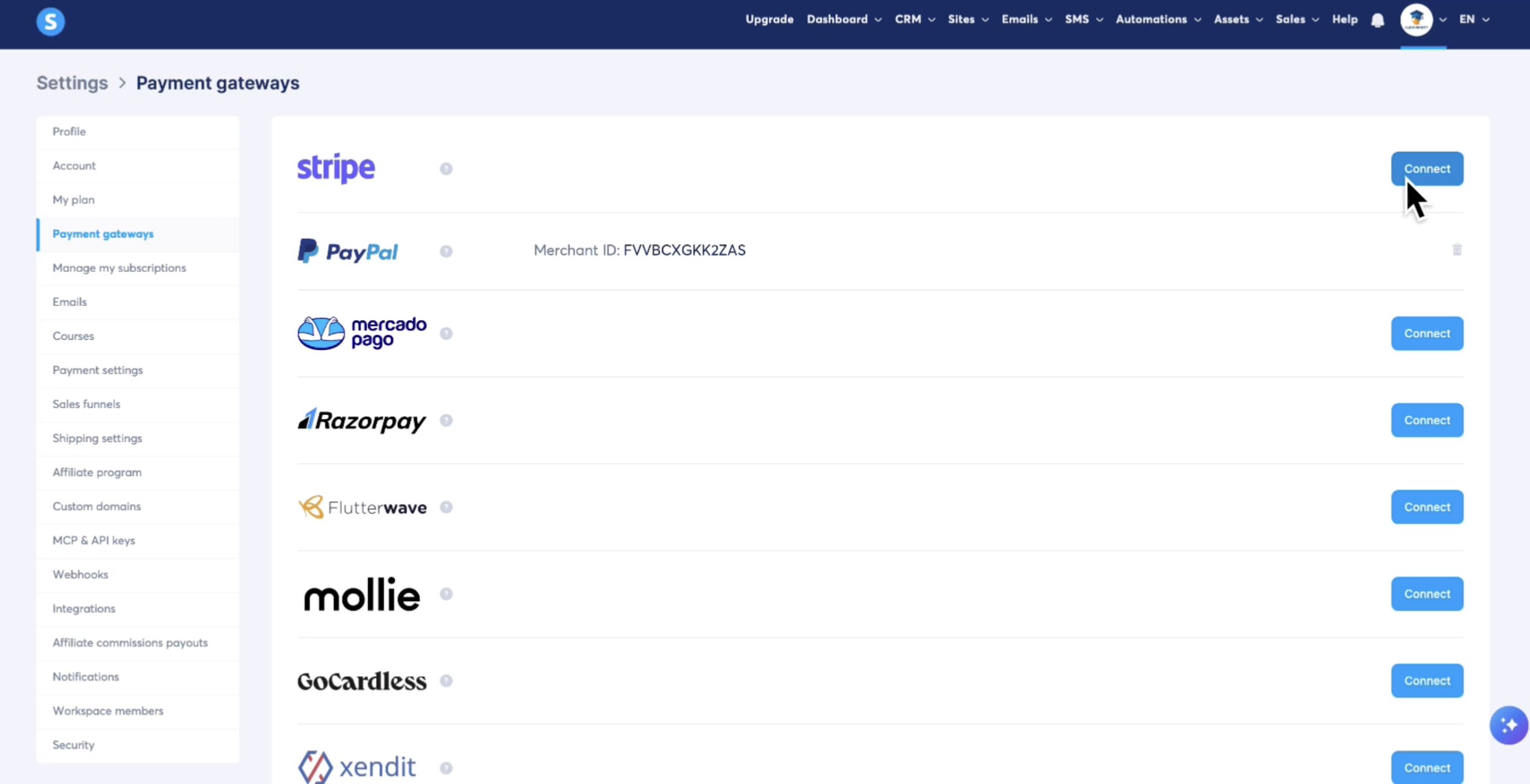
Once your payment gateway is connected, go to the top menu → Sites → Sales Funnels → Create.
Give your funnel a name (your product name works fine), set the goal to Sell, pick your currency, and hit Save.
You’ll see two steps in the left sidebar — Order Form and Thank You Page.
But we need one more.
A sales page.
This is the first thing people see when they land on your link. Without it you’re sending people straight to a checkout — and that doesn’t convert well.
Click Add Step, name it Sales Page, set the type to Sales Page, and save.
Now drag it to the top so the order is:
Sales Page → Order Form → Thank You Page
That’s your funnel.
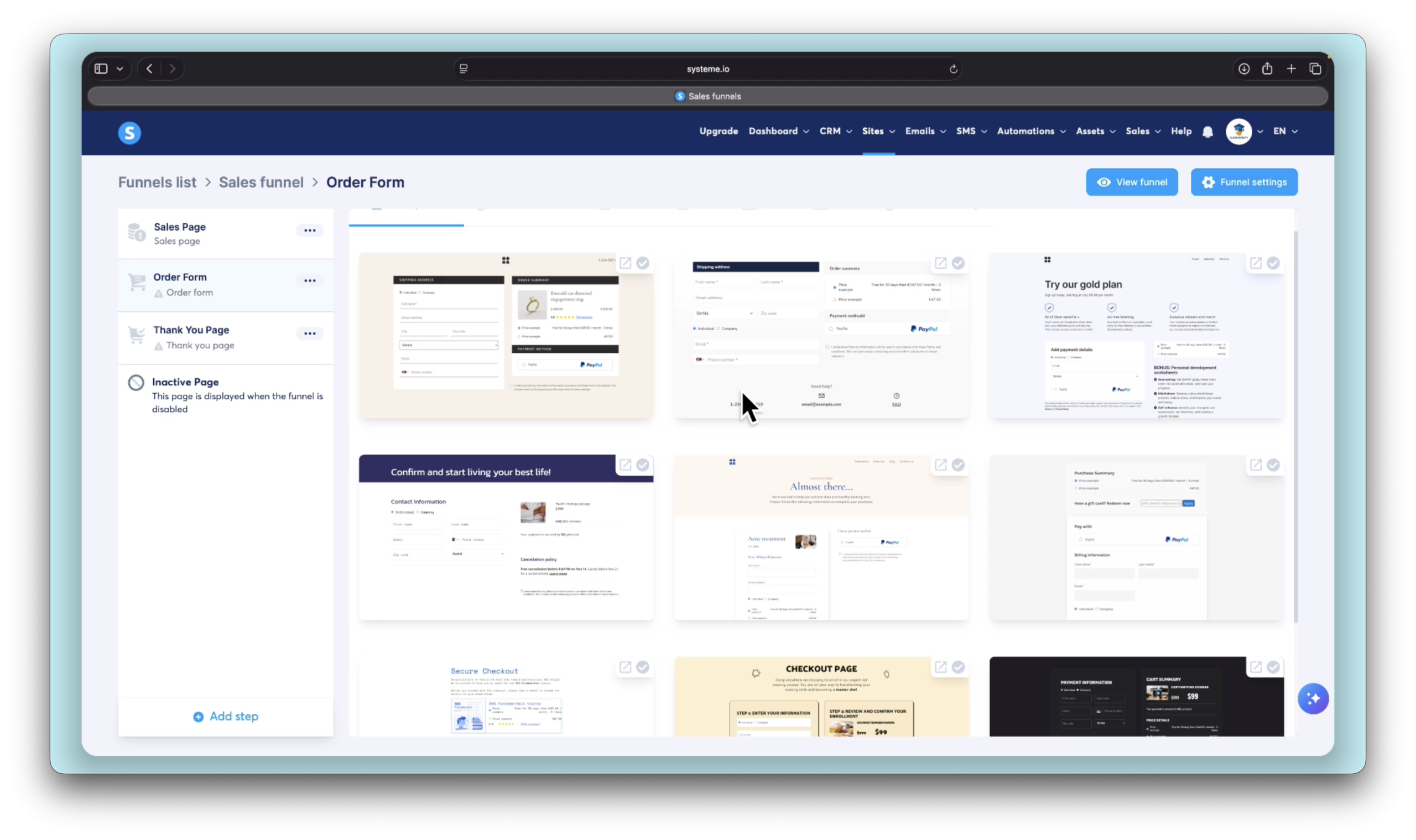
Step 1 — Set up your sales page
Click on the Sales Page step and pick a template. Preview a few and find something clean that fits your product.
Before editing anything — update the URL slug to something that makes sense. Like your domain/product-name. Just good practice.
Then hit Edit Page.
It’s a drag and drop editor. No coding. Just click on any element and change it.
A few things to focus on:
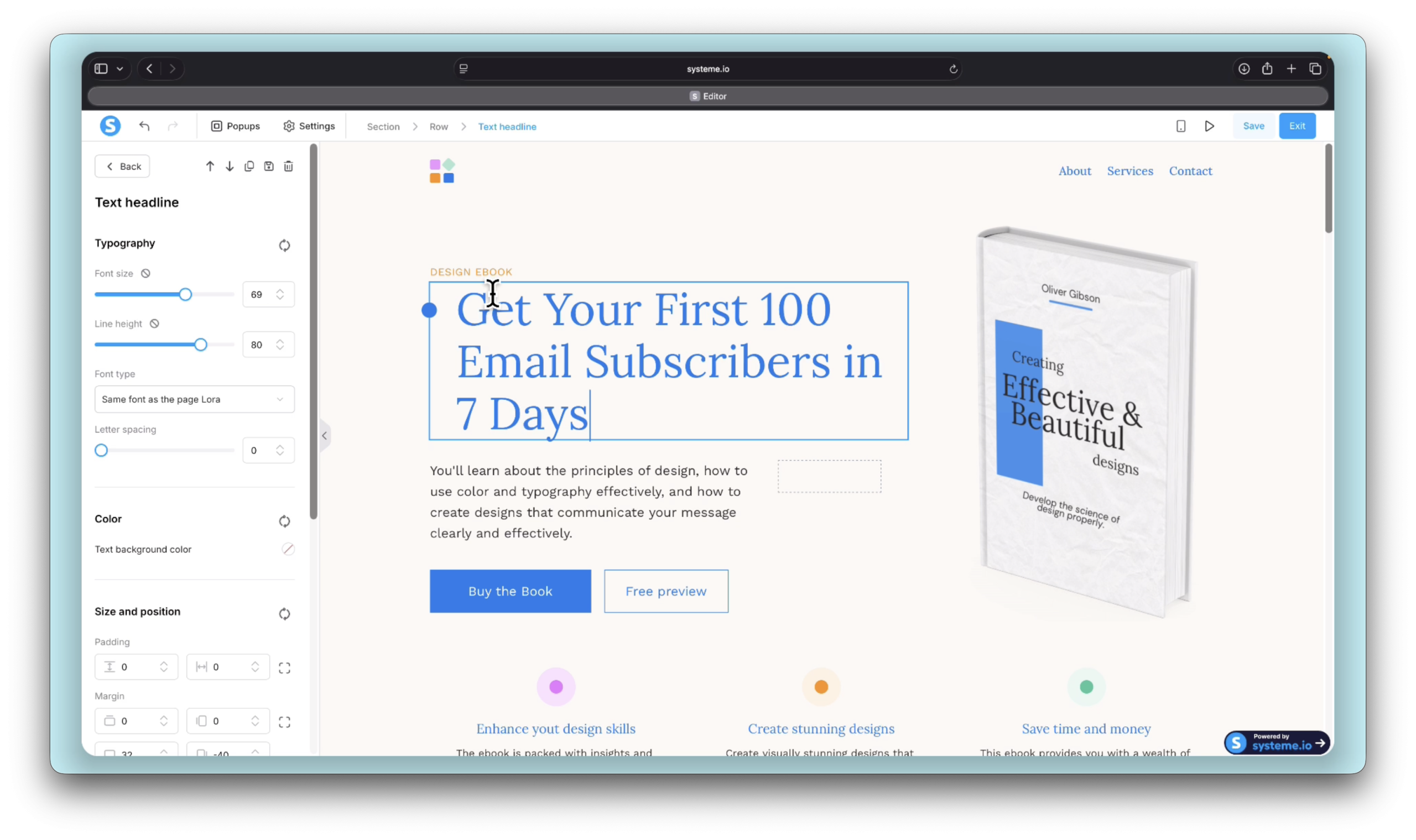
Your headline should tell people the result they’re going to get. Not what the product is — what it does for them. Something like “Get your first 100 email subscribers in 7 days” hits way harder than “Email Marketing PDF Guide.”
Change the product image to your own. Delete any elements you don’t need.
And one thing to definitely check — click your Buy button and confirm the action is set to go to the next step. That’s how people get taken to the order form after clicking. It’s usually set by default but always worth checking.
Save and exit.
Step 2 — Set up your order form
Click the Order Form step and pick a template. Try to find one that visually matches your sales page — similar colors, similar vibe. You want it to feel like the same website.
Update the URL to something like /checkout or /order.
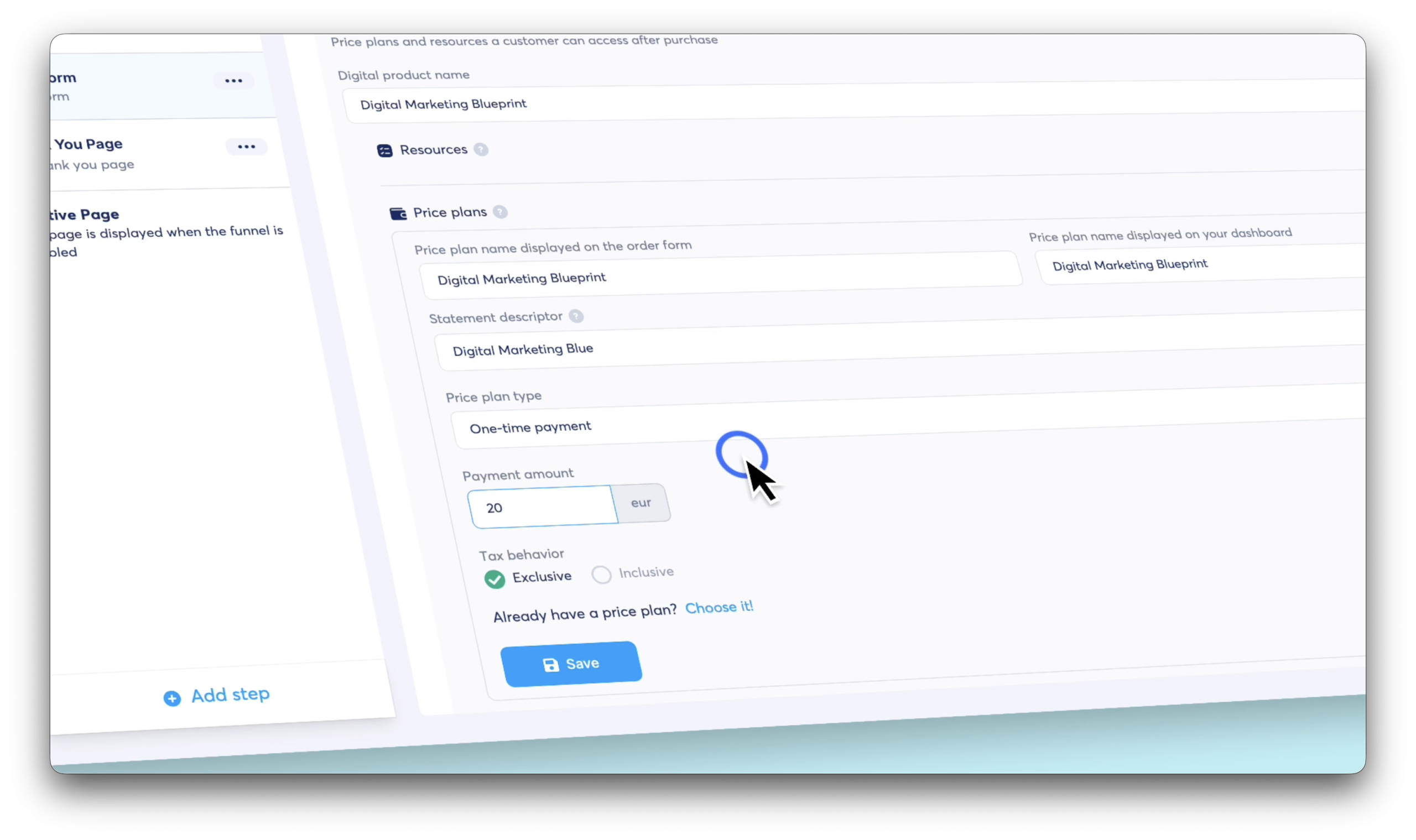
Now — before touching the design — scroll down. This is where you set up what you’re actually selling.
Select Digital Product, name your product, then add a price plan. For a digital product, One-Time Payment is what you want. Click Create New, set your price, and save.
Now hit Edit Page.
For the form fields — keep it simple. First name, last name, email. That’s it. Delete phone number, company name, anything extra. Every extra field makes people less likely to complete the checkout.
Save and exit.
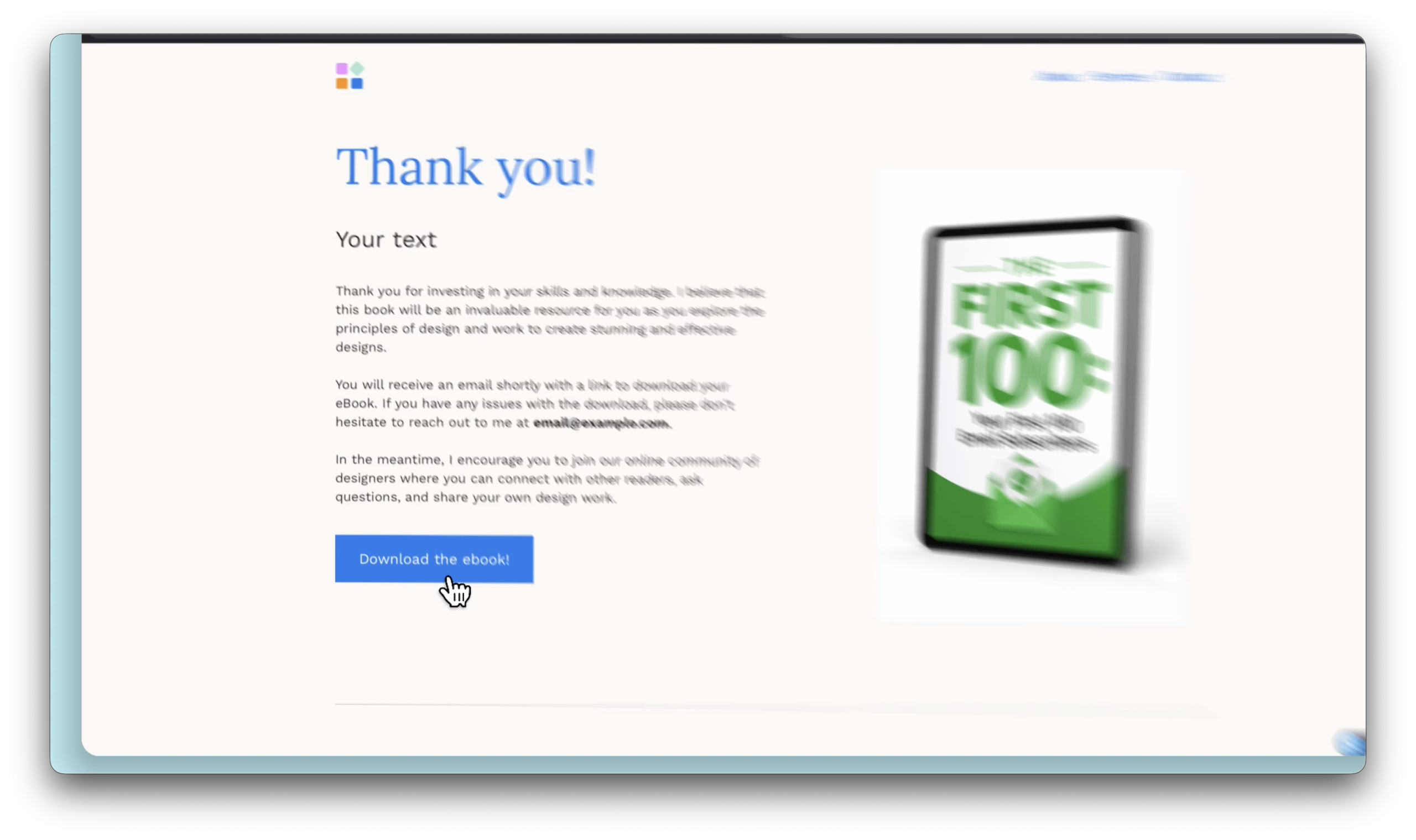
Step 3 — Set up your thank you page
Last one. Click the Thank You Page step, pick a template, and again — try to match the style of your other two pages. All three should feel connected.
Update the URL to /thankyou, then hit Edit Page.
Change the headline, swap in your product image, keep the text short. They just bought something. They want the thing. Don’t overcomplicate it.
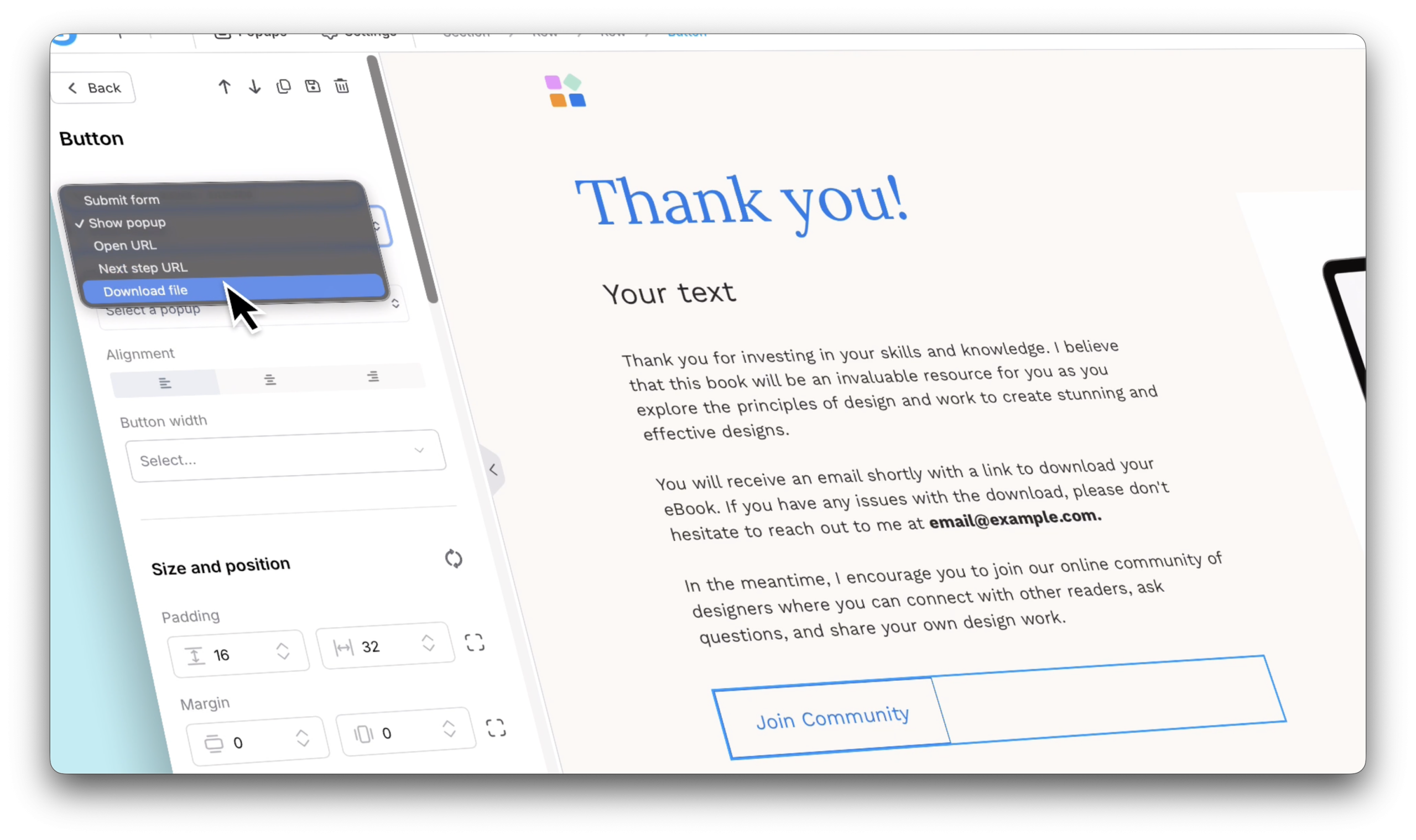
Now — delivering your product. Two options:
For most people starting out — the download button is all you need.
Save and exit.
Testing the funnel
This is the moment.
Go back to the funnel overview and click View Funnel.
Read through your sales page like a first-time visitor. Does it make sense? Is the buy button obvious? Then click it and check the order form loads properly.
Now — to test checkout without actually charging yourself, go back to your order form settings and add a coupon. Call it TEST100, set it to 100% off. Save it.
Back on the order form, fill in your details, apply the coupon, and click Buy.
You should land on your thank you page. Click the download button and make sure the file actually downloads.
If it does — you’re done.
Your funnel is live. Anyone with your sales page link can now buy your product and get it delivered automatically. While you sleep. While you do something else entirely. That’s the whole point.
Create your free Systeme.io account and have your sales funnel live today. No monthly fee, no percentage cut — you keep everything you make.
Start for Free with Systeme.io →Free forever · No credit card required · Full sales funnel included